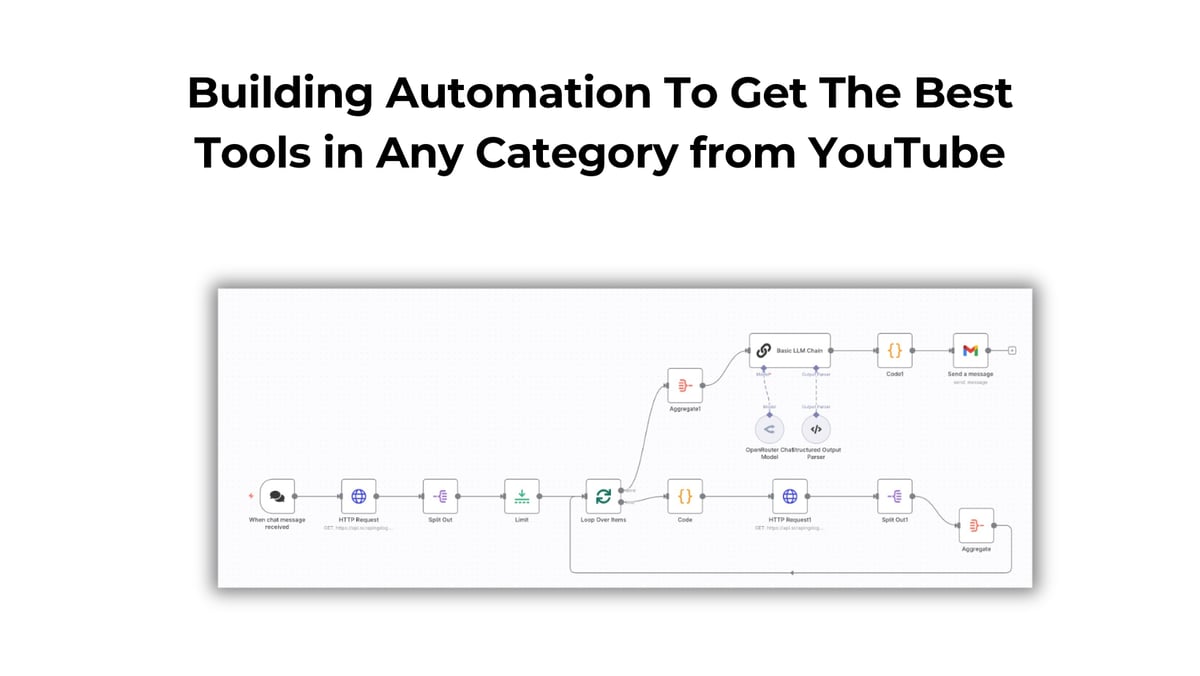
As a busy founder, you might have a lot of tasks in your pipeline. You might have heard that ‘Time is Money’ & saving it for important tasks is something that would be on your priority list.
With this automation, you can get the best of the best tools from YouTube videos from the top 5 videos.
This way, every time you search for keywords like ‘Best CRM Tools’, the automation would run, scan the top 5 videos from YouTube, and give you the best 10 tools that are in there. And thus save you a lot of time researching manually for each tool.
In the end, I will give you a blueprint for this automation so that you can download & use this as is in your n8n.
Let’s get started!
Tools We Will Be Using To Build This Workflow
Scrapingdog’s YouTube Search & Transcript API
n8n
The logic on which our automation works is simple, we use the YouTube Search API to get the top videos, the top 5 videos’ transcript is fetched and then aggregated. This is then sent to AI Model with prompts to get the best tools with priority of mentions & link to each tool.
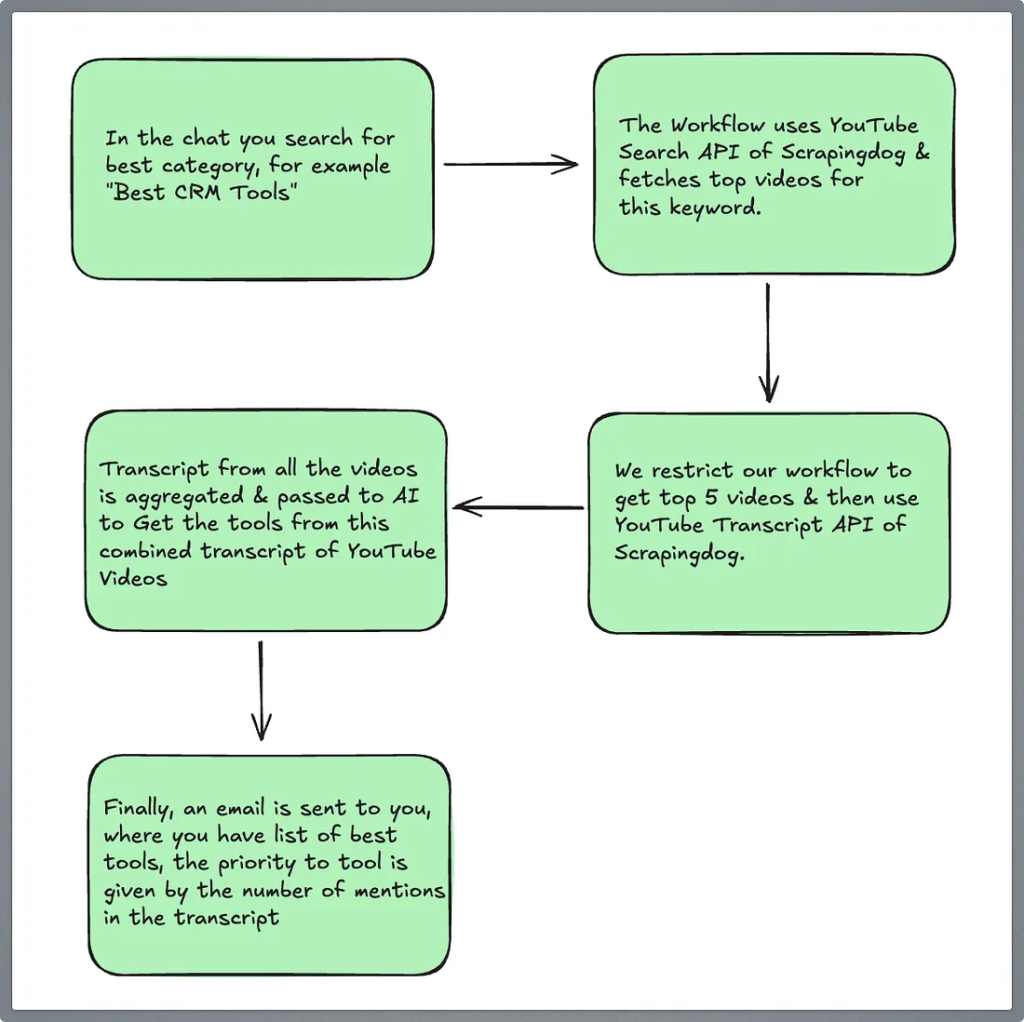
Building Workflow
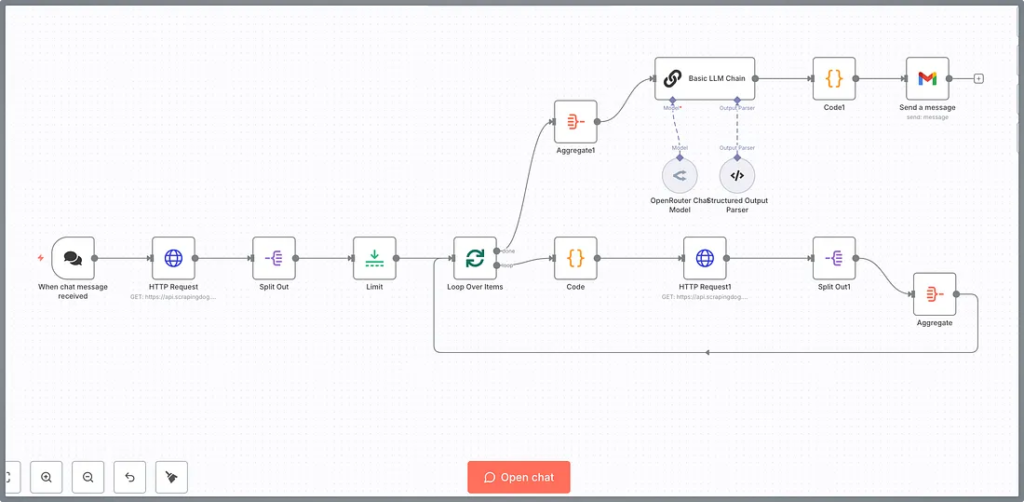
This workflow starts with a Chat Node, wherein we will type in our category as I told earlier (best CRM tools).
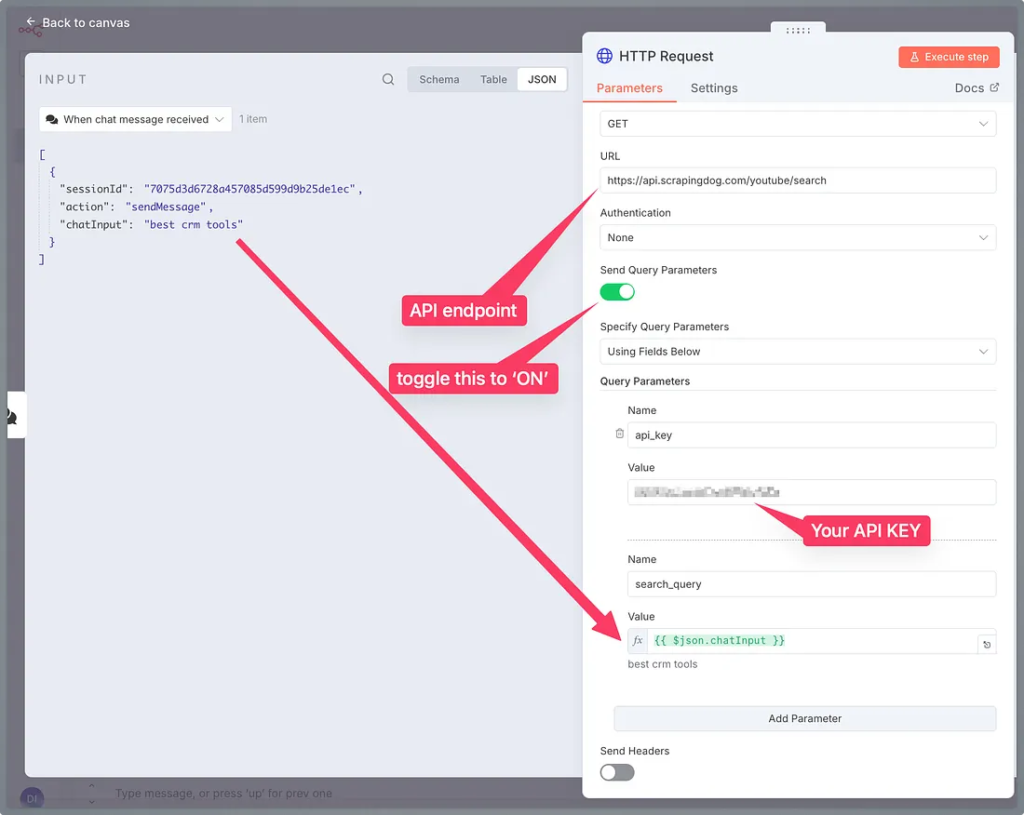
The message is taken as a keyword & sent to our next node, which is an HTTP request. Here we are taking the YouTube Search API from Scrapingdog.
To understand more about this API, you can refer to the documentation here.
Now, all the videos are in the array, so we will split them out using the Split node to get data points on each video.
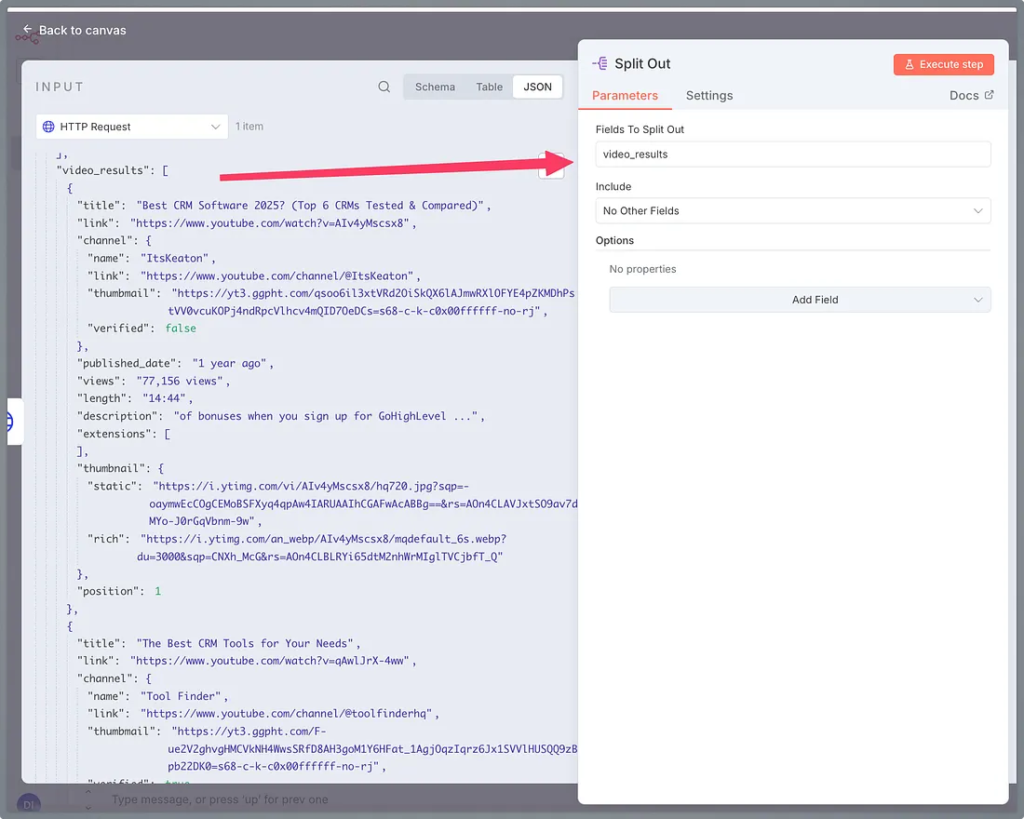
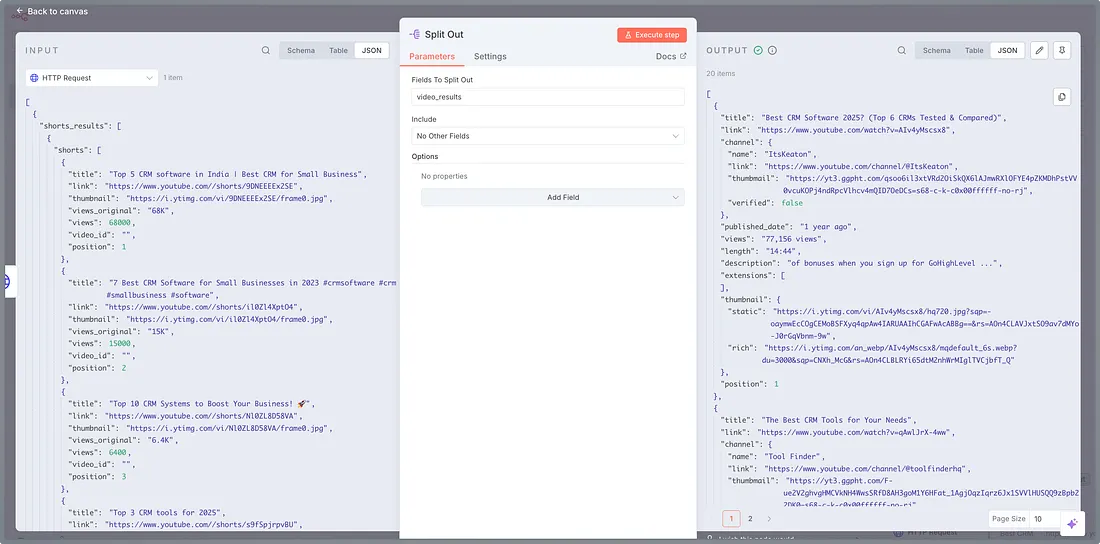
Let’s test this node as well.
There you go, each video’s data points are now separated.
We only want to analyze the top 5 videos, and therefore, we will now use the ‘Limit’ node to select only the top 5 videos.
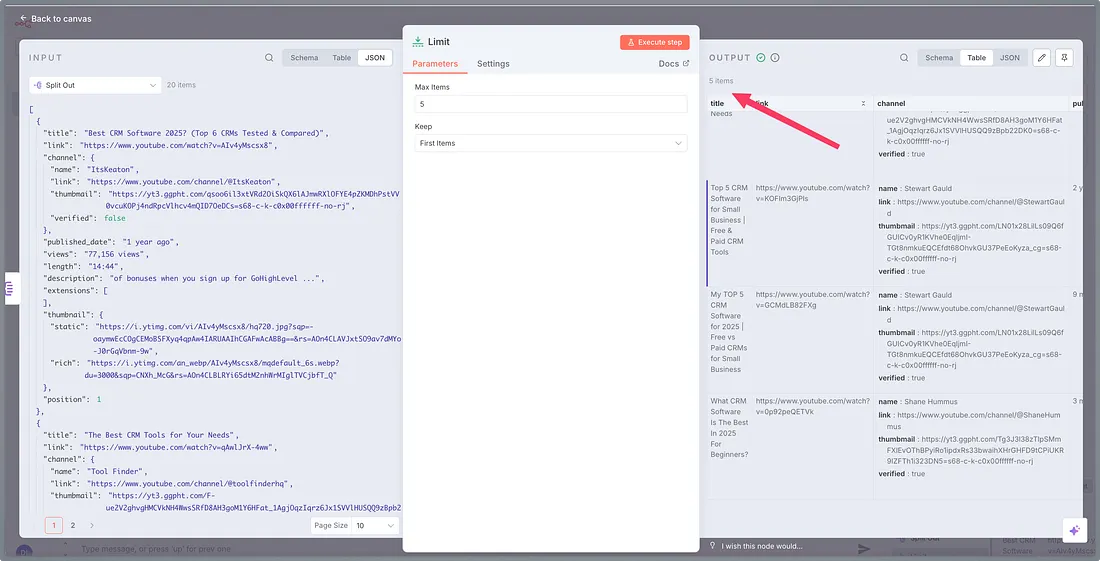
Testing this node, as you can see, we have got the results for the limit we set. Here, you can set any limit, since 5 is a good number. Therefore, for this tutorial, we have kept it to this number.
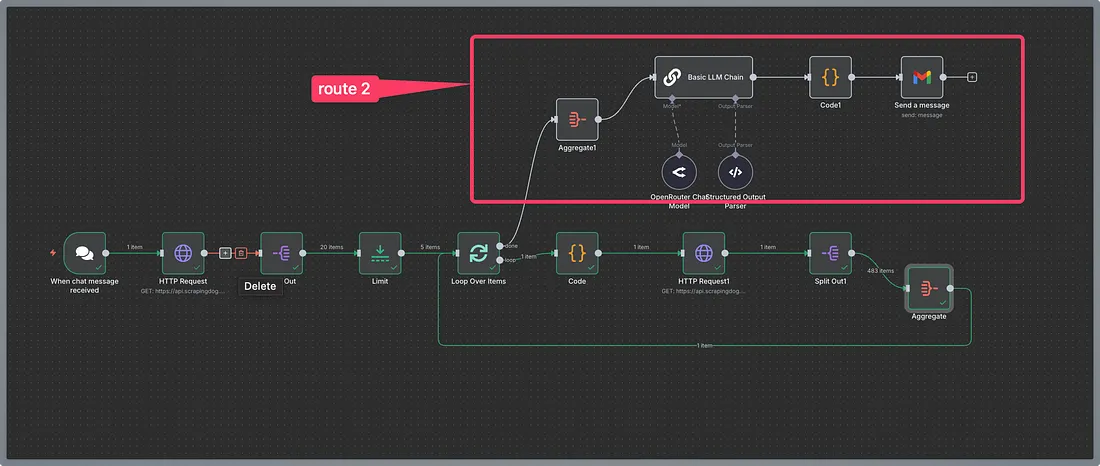
Now we have to scrape the transcript of each video. For this, on one route, we will use the YouTube Transcript API, which will get us the captions of each video. Furthermore, we will loop over them to get transcript of every video.
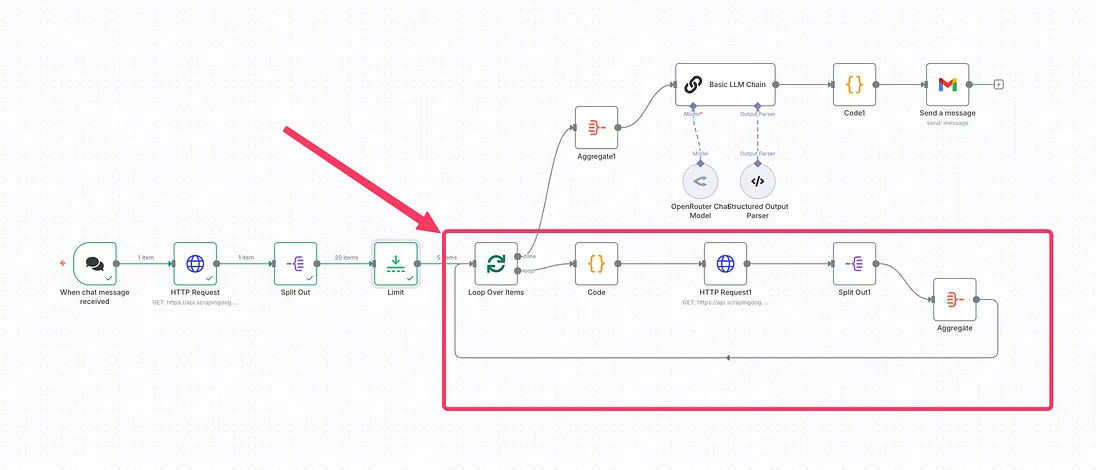
After the loop over items, we have a JavaScript code set that converts the link of a YouTube video into only the video ID (v), since this is one of the parameters used by the API.
To read more about this API, you can refer to the documentation here.
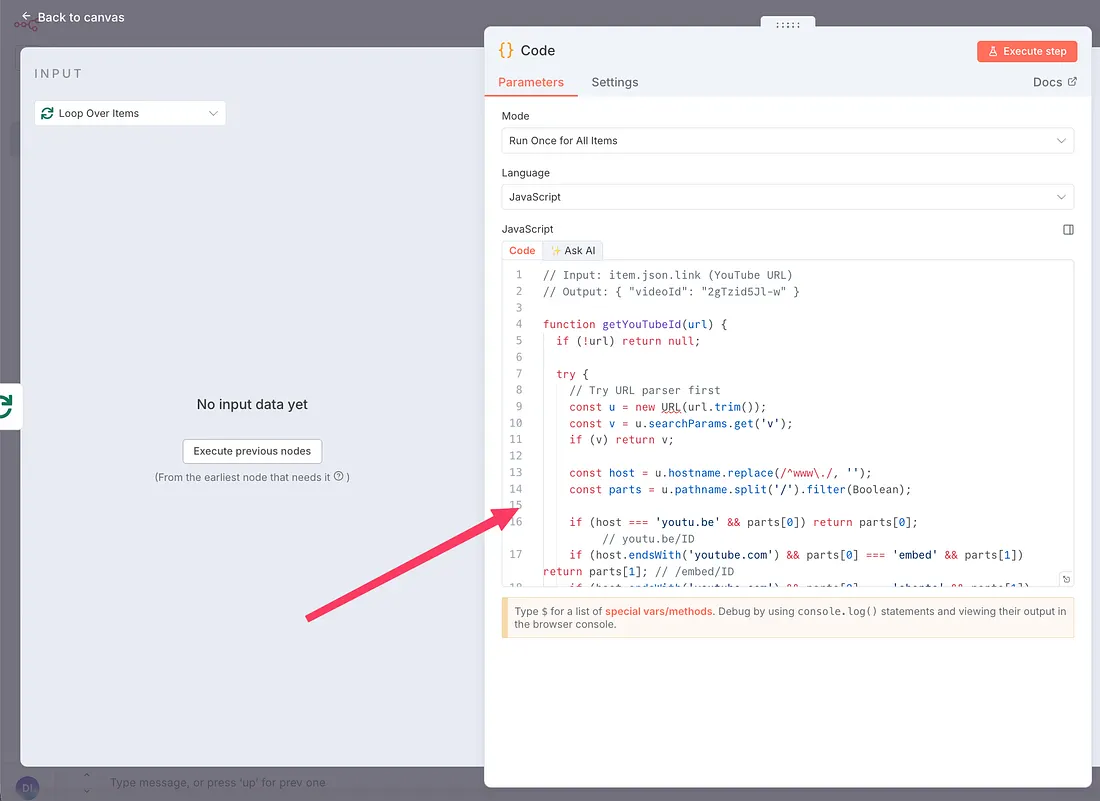
Here is that JavaScript code: -
It returns a video ID, that we will use in our next HTTP request, where we will use YouTube Transcript API.
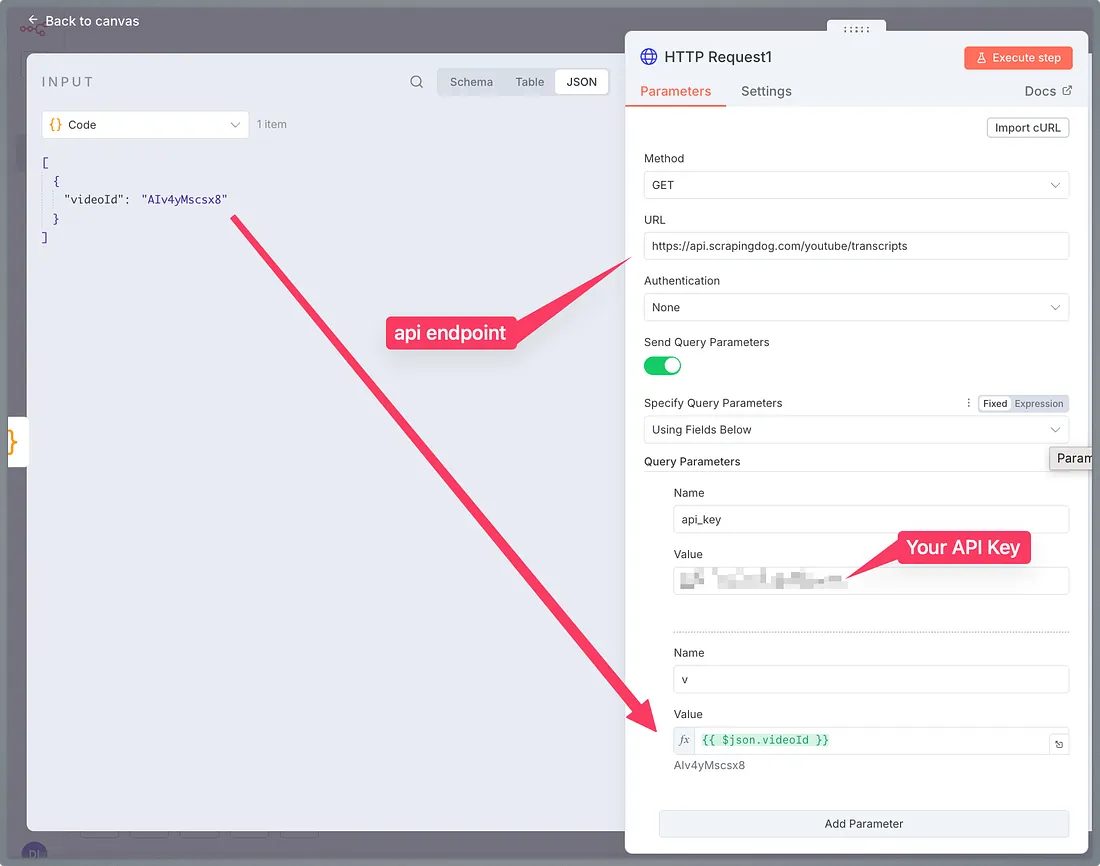
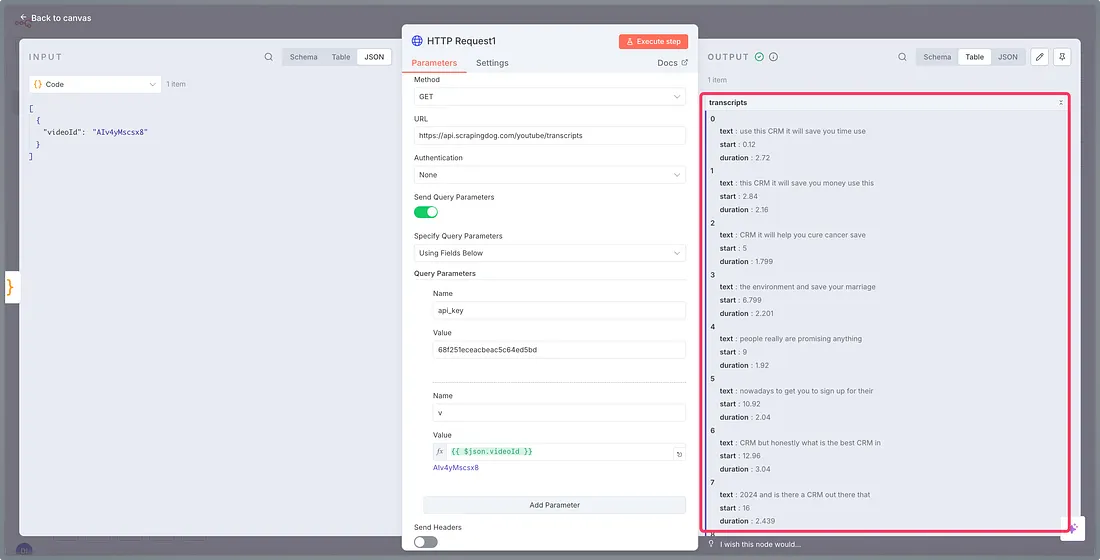
When we test this module, we get the transcript of the video.
We will now aggregate this transcript and then attach the loop end.
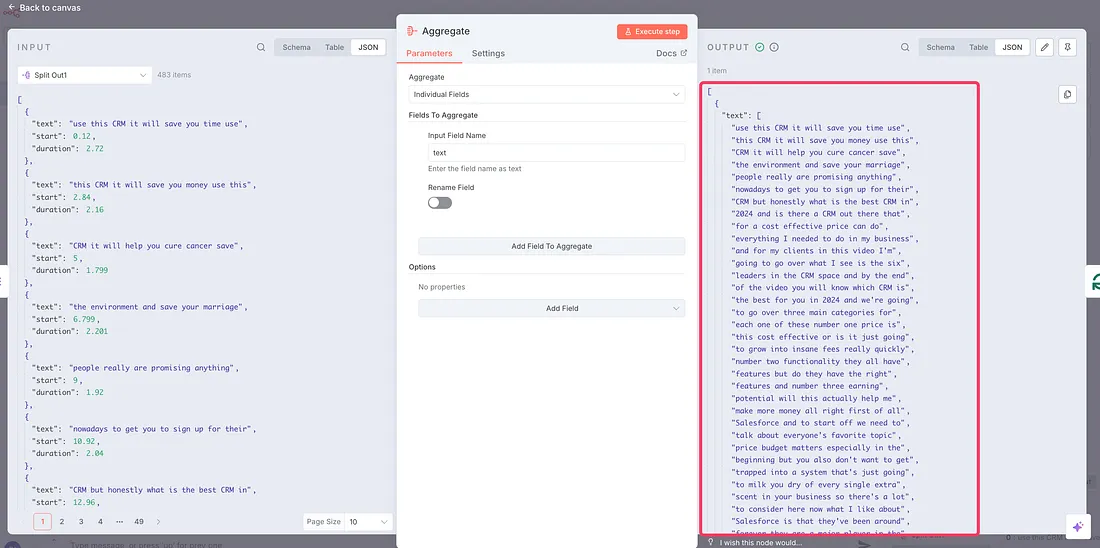
This sums up as a summary of one video; the workflow will do it for all five videos.
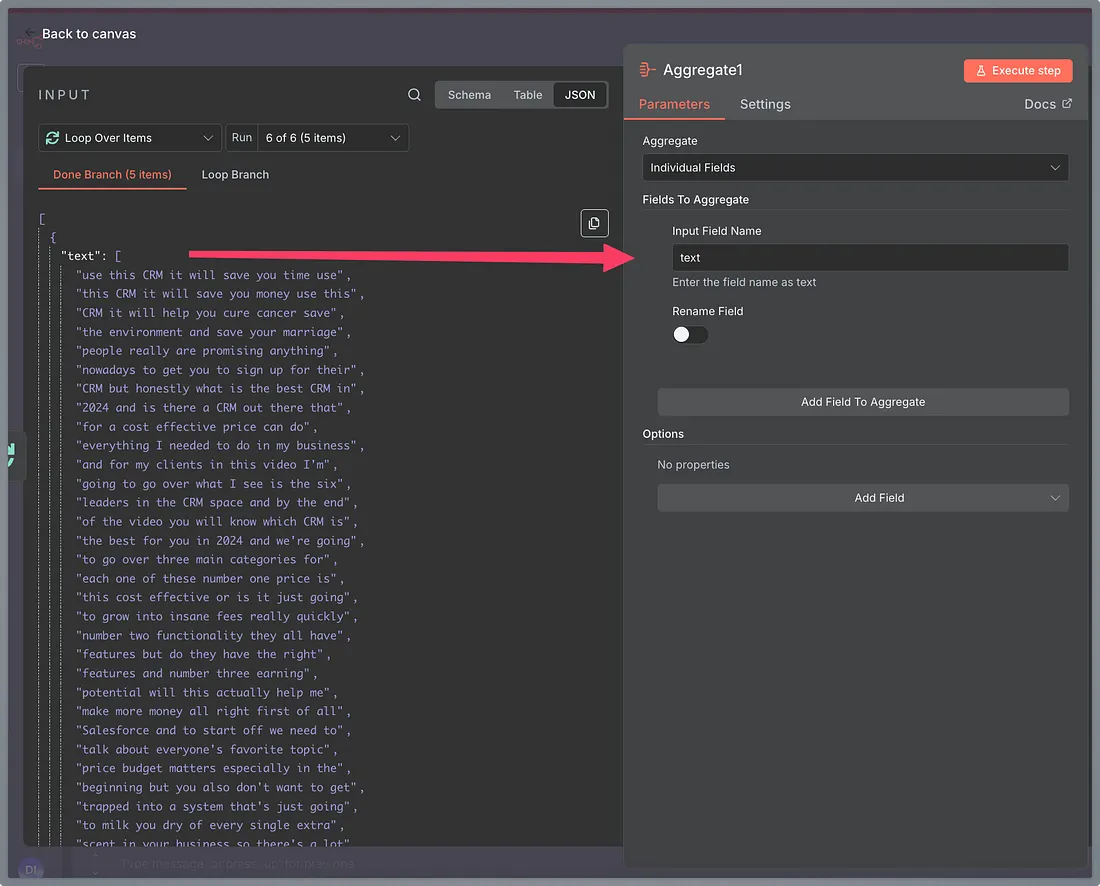
Once we get a summary of all five transcript, we aggregate them all in route -2 to further process in AI.
As you can see, the first node is Aggregate; the configuration for the same is here.
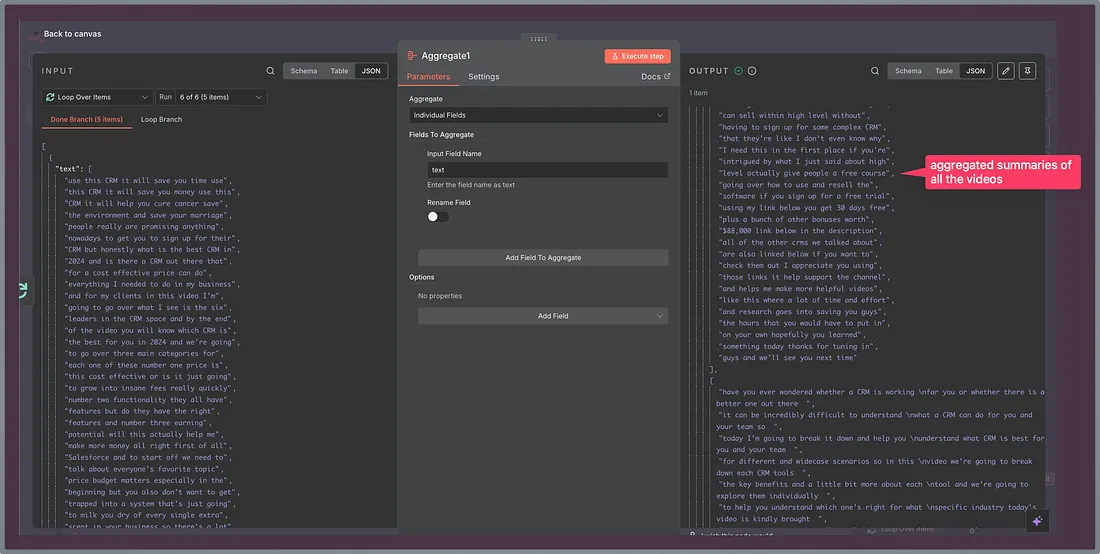
And with this, the output you will get is: -
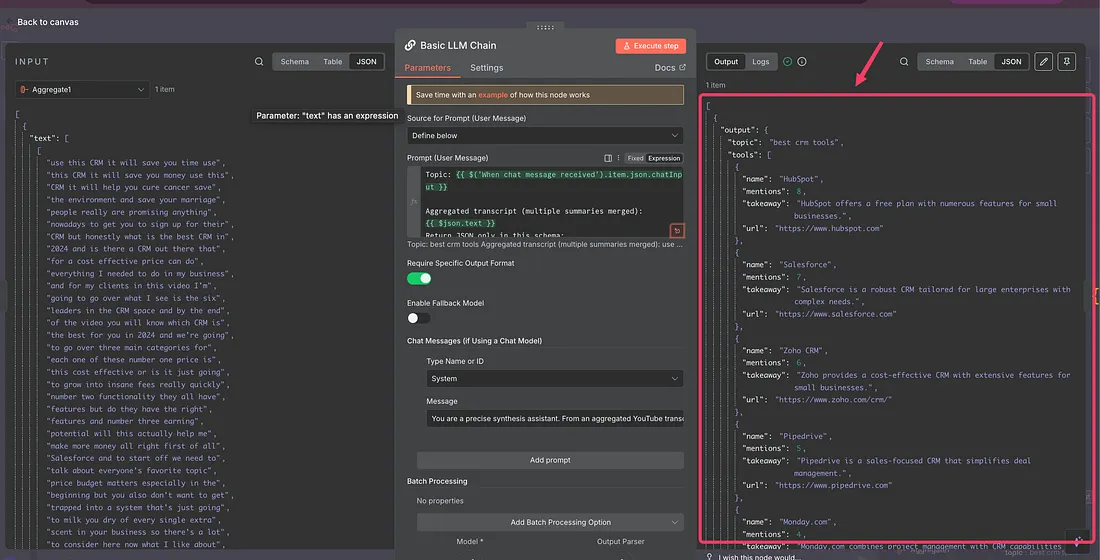
It’s time to feed this into our AI to get the best out of the best videos.
I am using the ‘Basic LLM Chain’ node here, and for the model, I am using the open-router with gpt-4o mini.
The system prompt that I have used is: -
The user prompt is simple, wherein we are feeding the aggregated text from our previous module.
This is the output you get in JSON: -
Now we will need to send this to our email, but before that a code node takes care of the formatting and delivers the output in HTML.
The JavaScript code used is: -
It returns both the subject and the body of the email, which we finally map to email module.
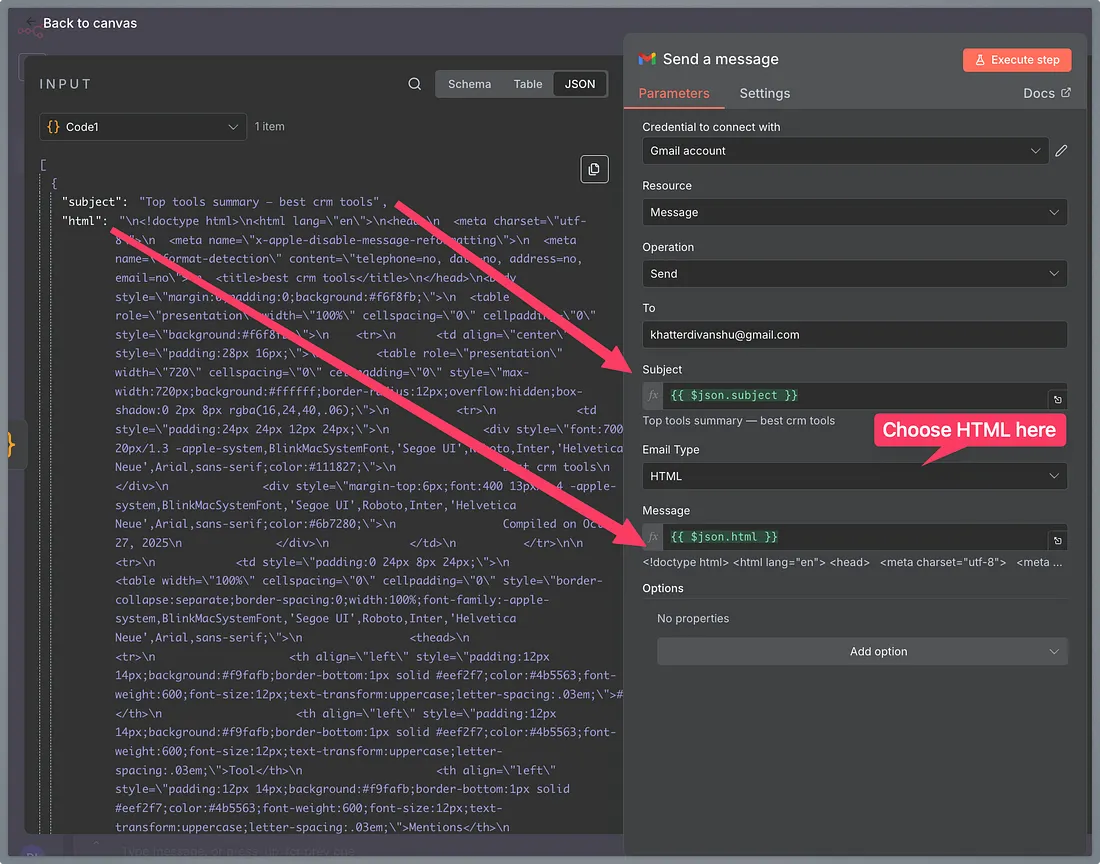
When this last step runs, you get an email to the specified email address with all details like this.
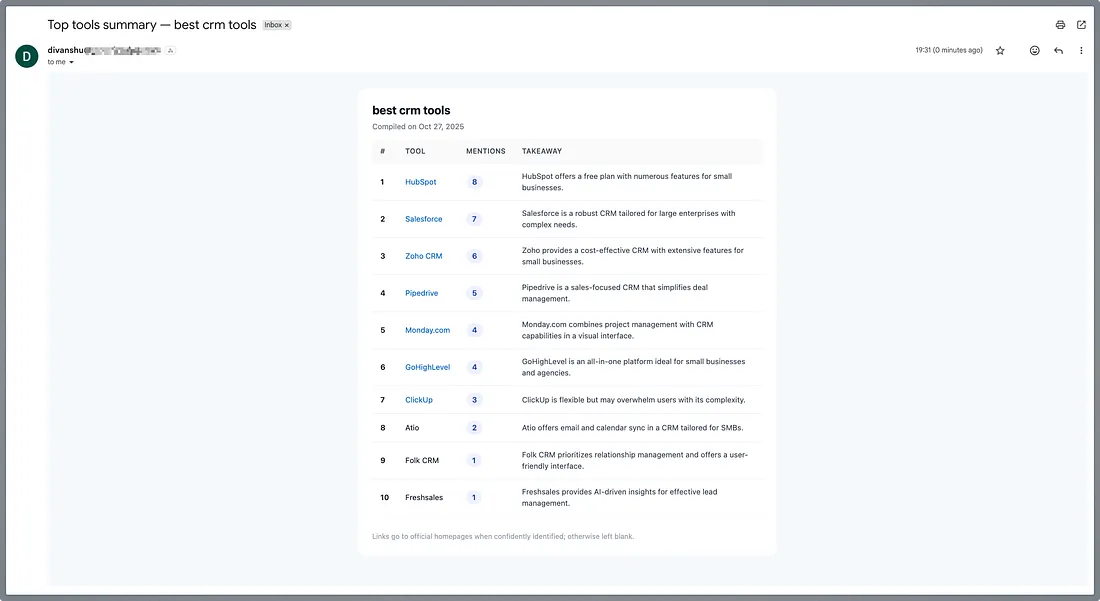
Pretty cool, right?
And as I promised, here is the blueprint for this automation that you can use as is in your n8n canva as is.
Blueprint — https://drive.google.com/file/d/1PRG650m6KhWkKThIn7B7zFi7EJFI2K54/view?usp=sharing
Additional Resources
Web Scraping with Scrapingdog
Scrape the web without the hassle of getting blocked Try for Free Contact sales
Web Scraping with Scrapingdog
Scrape the web without the hassle of getting blocked Try for Free Contact sales