The num=100 parameter just got removed. What does that mean for the industry, depending on this?
Using this parameter, rank tracking tools, used to scrape all 100 results in one go. But after Google removed this, there was shock in the industry; businesses were shaken by this move from Google.
According to Search Engine Land, 77% of the sites lost visibility, which is a huge number considering Google is still the number one source of traffic for many brands.
It definitely affected the tools, and even the big brands like Ahrefs, SEMrush, which were giants in this domain, panicked as this unofficial update from Google arrived.
What’s next? How do rank trackers adapt?
Before the fixes, a quick note on intent: why Google made this move and what it signals for SEO.
Was Google after this billion-dollar industry of SEO tools?
And the answer is “NO”, Google smartly wanted to stop AI bots from crawling their results, including the big-time rival ChatGPT.
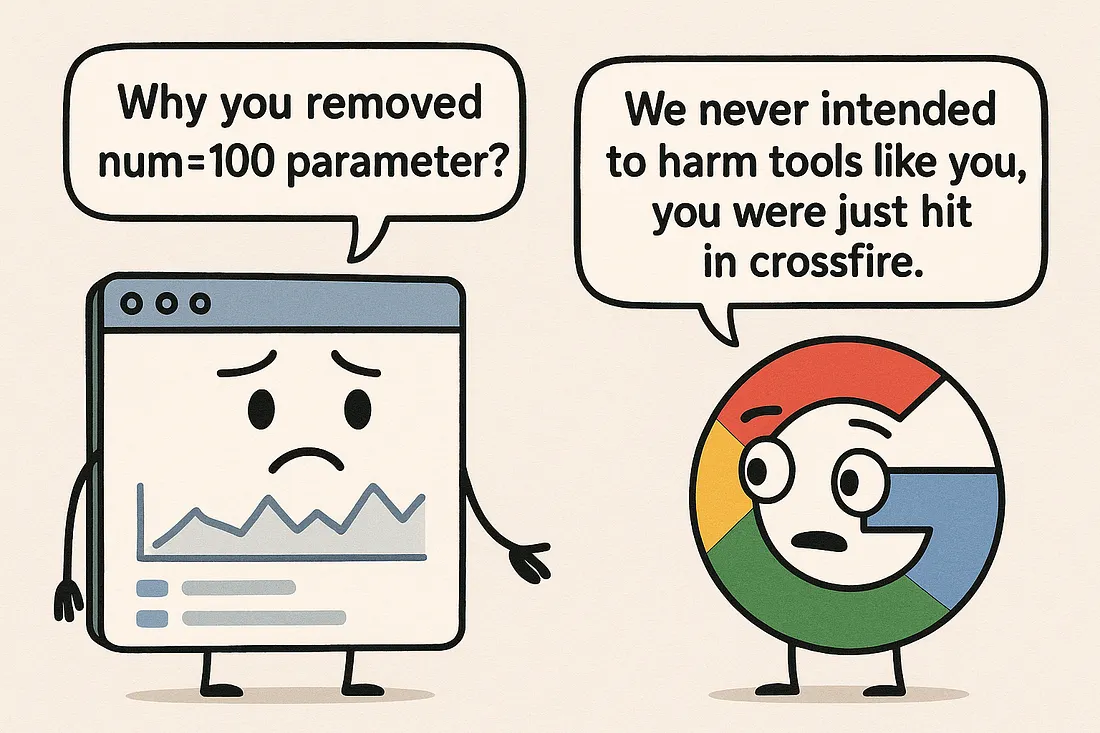
The change wasn’t aimed at rank trackers; they were collateral damage.
How Rank Trackers Are Going To Deal With This Change
Scraping simply works on a simple fundamental: if the browser has all the 100 results on one page, it can scrape them.
With the num=100 parameter removed, you can now only see 10 results per page. If you want to understand how this impacts scraping, this guide on scraping Google search results explains it in detail.
To get 100 results, you would need to scrape pages 1, 2, 3….10, all of them now.
This means the API call will increase, specifically 10 times. And so will be the cost of your rank tracking tool.
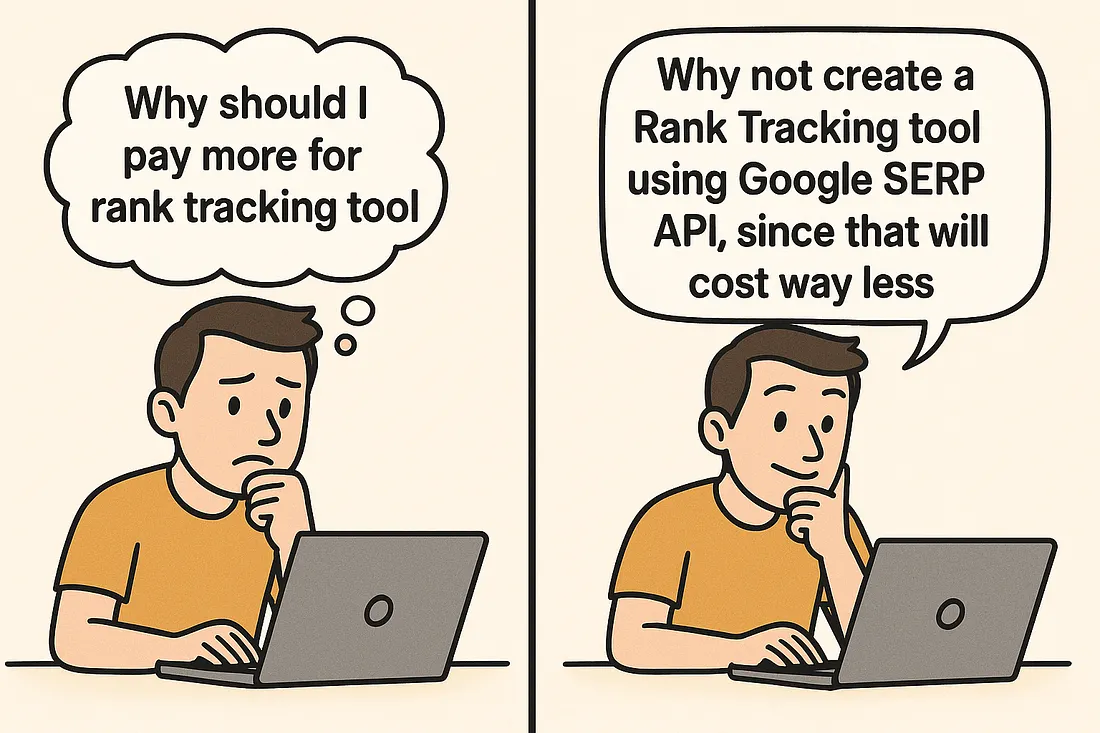
We at Scrapingdog had the same issue wherein our rank tracking tool stopped working. Since a significant portion of our traffic comes from Google organic searches, we needed to find a solution.
Luckily, the main ingredient to build this recipe was a product that we already sell to our customers. Yes, I am referring to the Google Search API.
So, we thought, why not build a basic rank tracking tool for ourselves using some no-code tool, and this API?
Building A Rank Tracker using n8n & Google SERP API
You need to have access to n8n & Google SERP API from Scrapingdog that will scrape the search engine. I would also link to the blueprint at the end of this tutorial with a set of instructions to make it personalized for you.
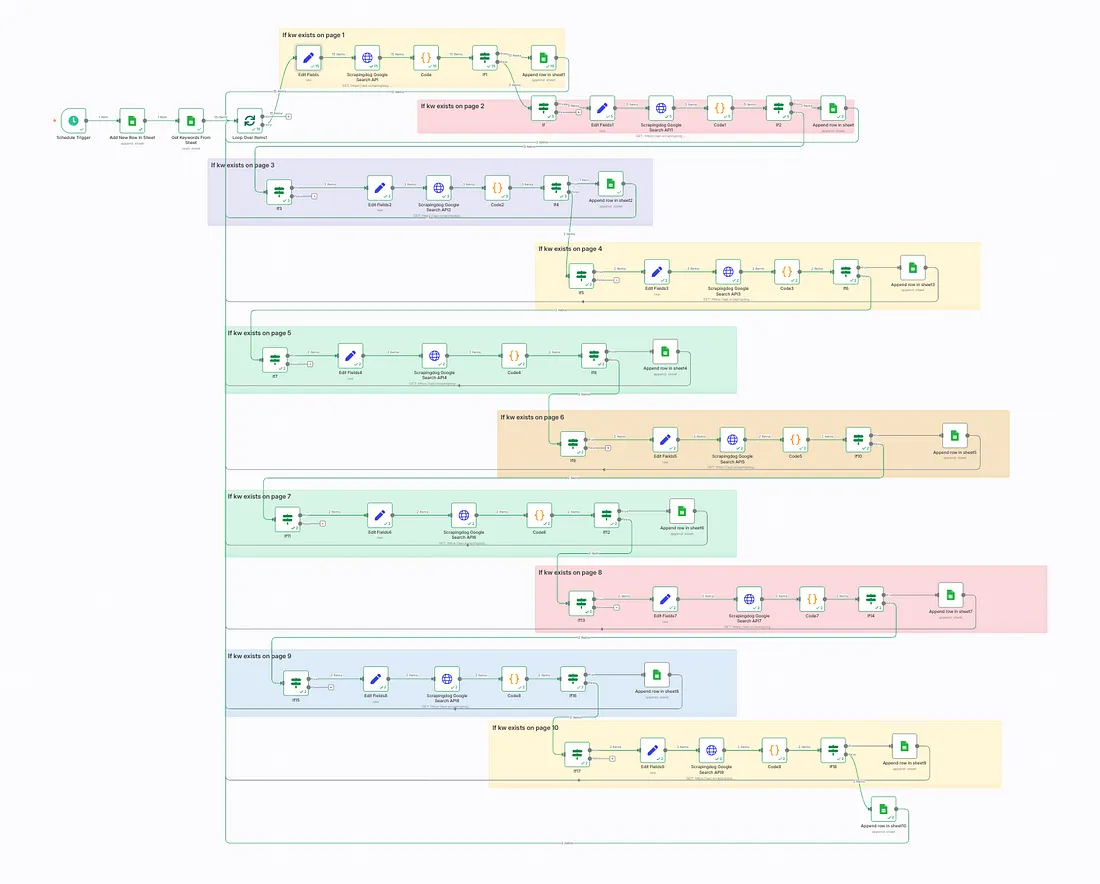
The Idea was to create a basic rank tracker that is optimized for cost as well as efficiency. We are not scraping all 10 pages upfront, i.e., if the keyword is found on page 1, the workflow automatically takes the second keyword and gets results for the next keyword.
This way, we save on the API cost, and we don’t have to pay for all 10 results.
I made a video tutorial on this topic too, here it is: -
If you prefer to read, follow along.
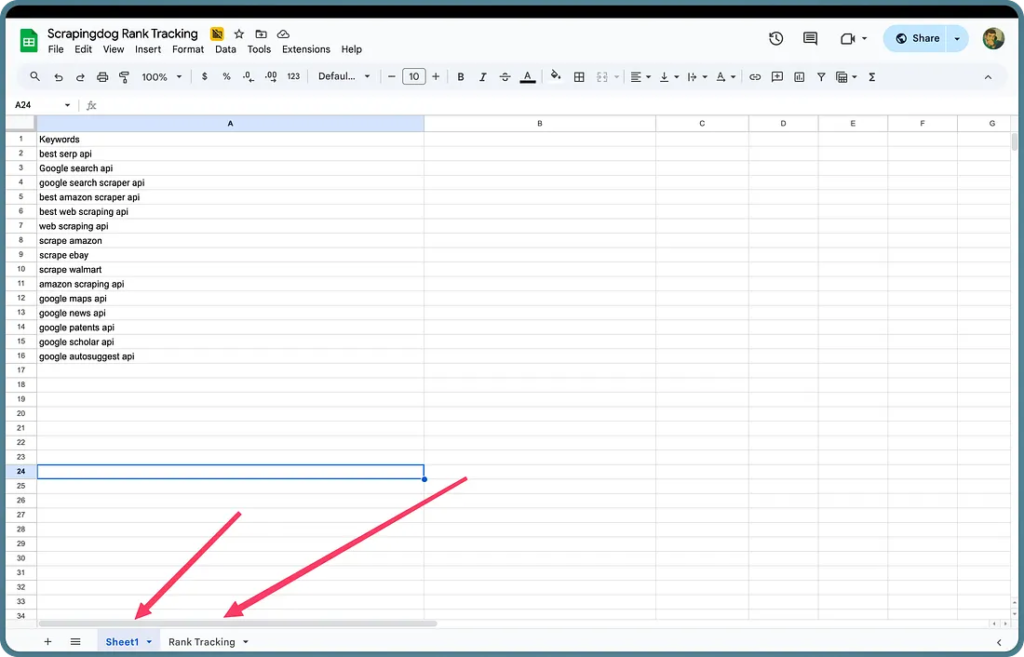
Here is the Google Sheets, wherein we have keywords in tab-1 and we are recording results in tab-2.
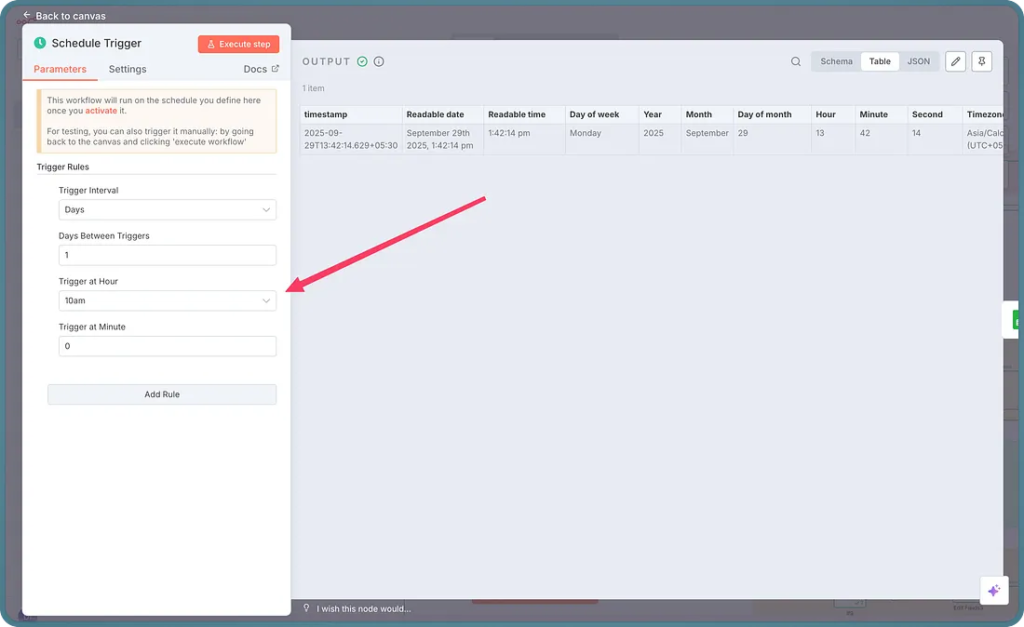
The whole workflow starts with a trigger, which is scheduled for every day.
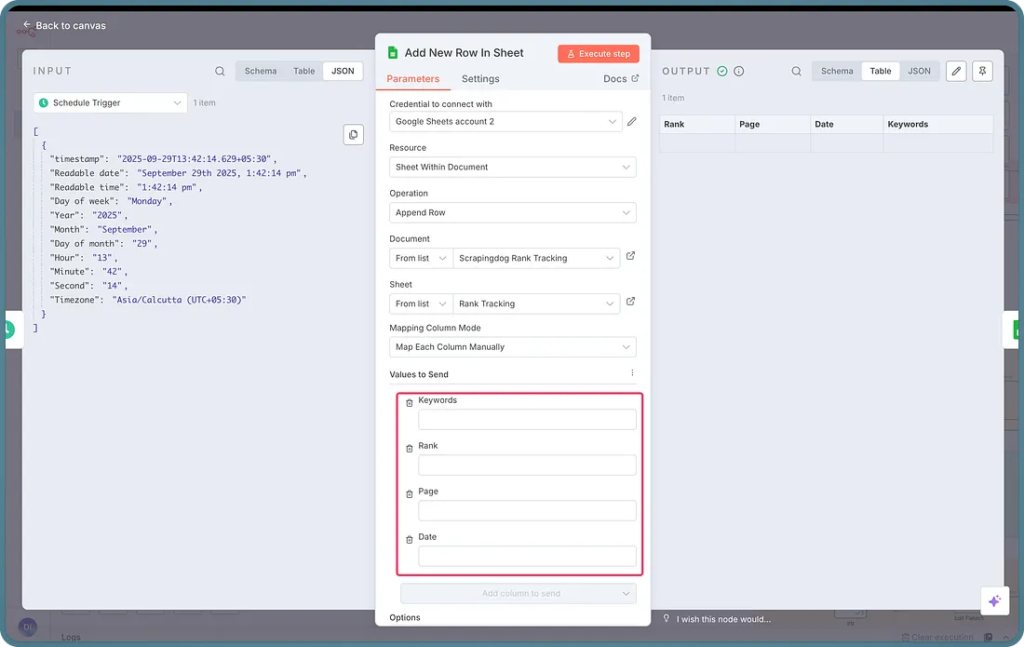
The next node in n8n is adding a blank row, so we differentiate between the days of tracking. Here is the configuration of that node.
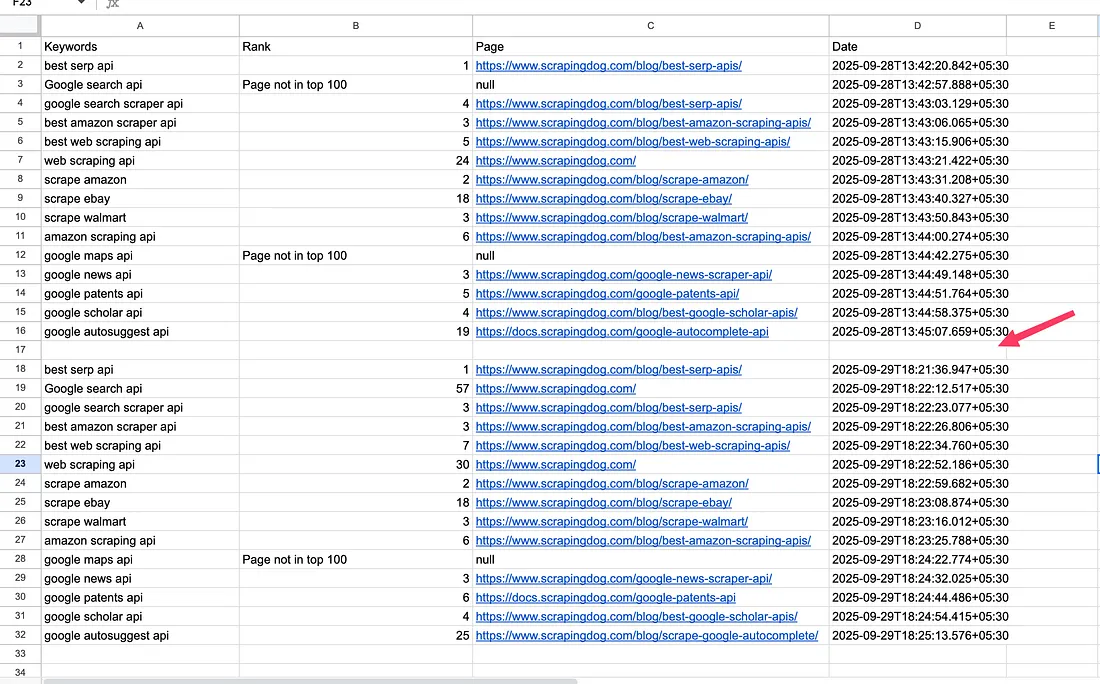
This will add a blank row like this below ⬇️
The next node in our workflow would be to fetch all the keywords from tab-1 for which we want to rank track.
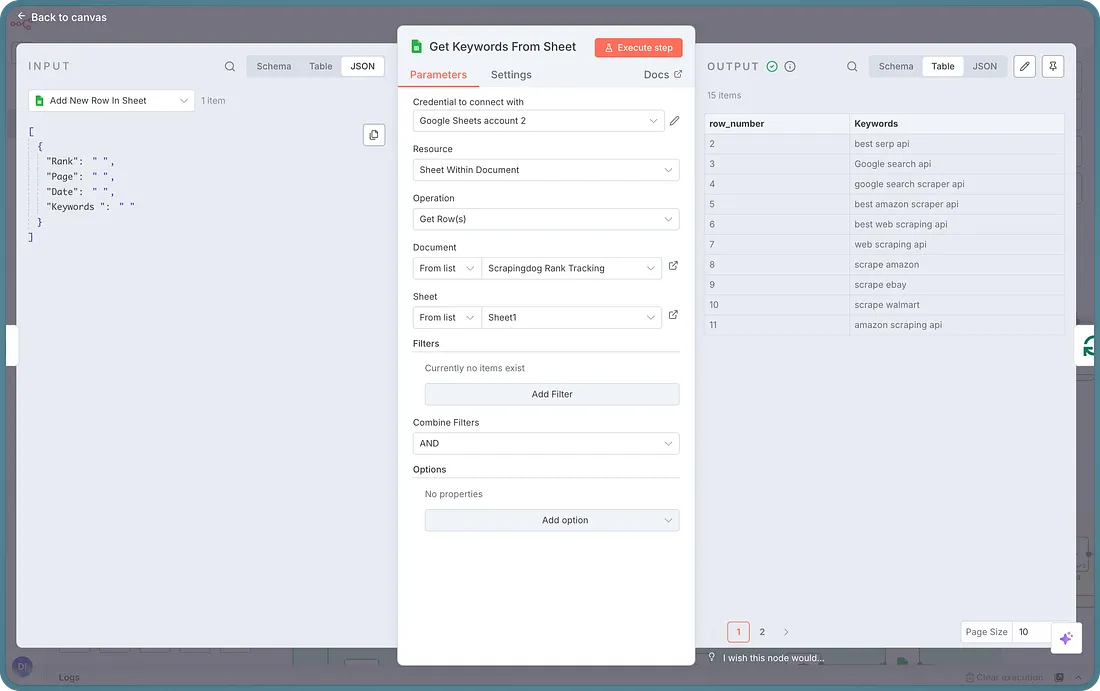
As you can see on the right side, the node is fetching all the keywords in the output.
Now, logically we would want to get the data for each keyword one by one & for the same, we would loop through those keywords.
The next node is the Loop node, and here is the configuration ⬇️
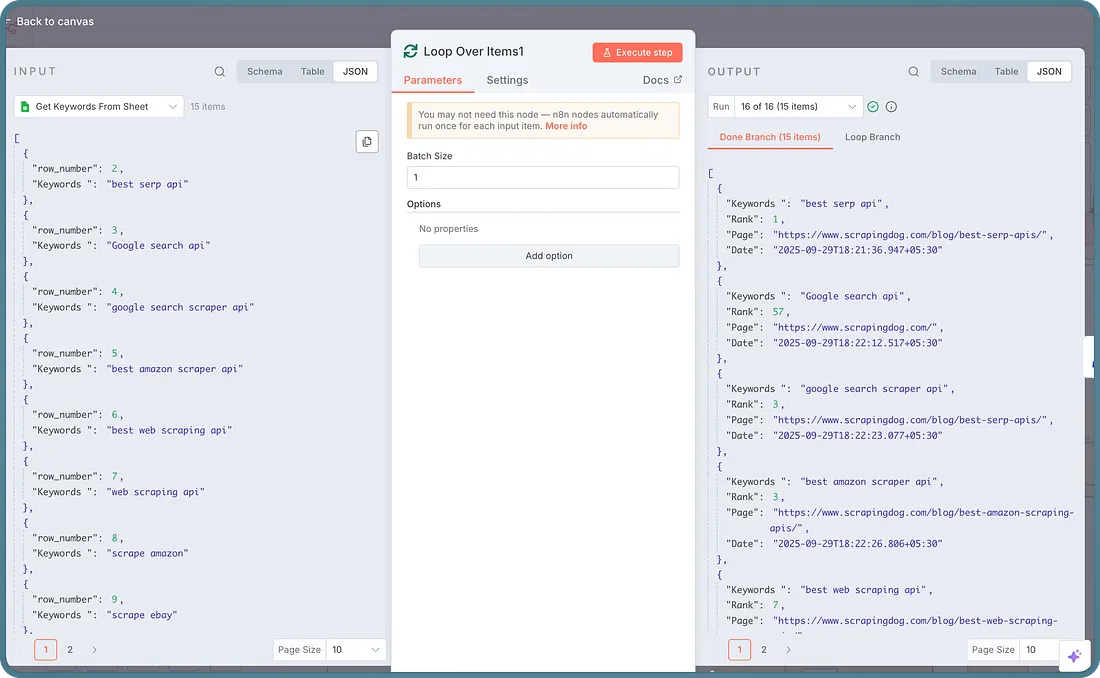
Essentially, what is happening here is, the workflow takes one keyword from our flow, determines if it ranks on page 1, and if not, then transfers it to page 2.
Therefore, a loop here becomes an essential component of our workflow.
The next node is “Edit Field” where we are setting up some of the fields for further data in our workflow.
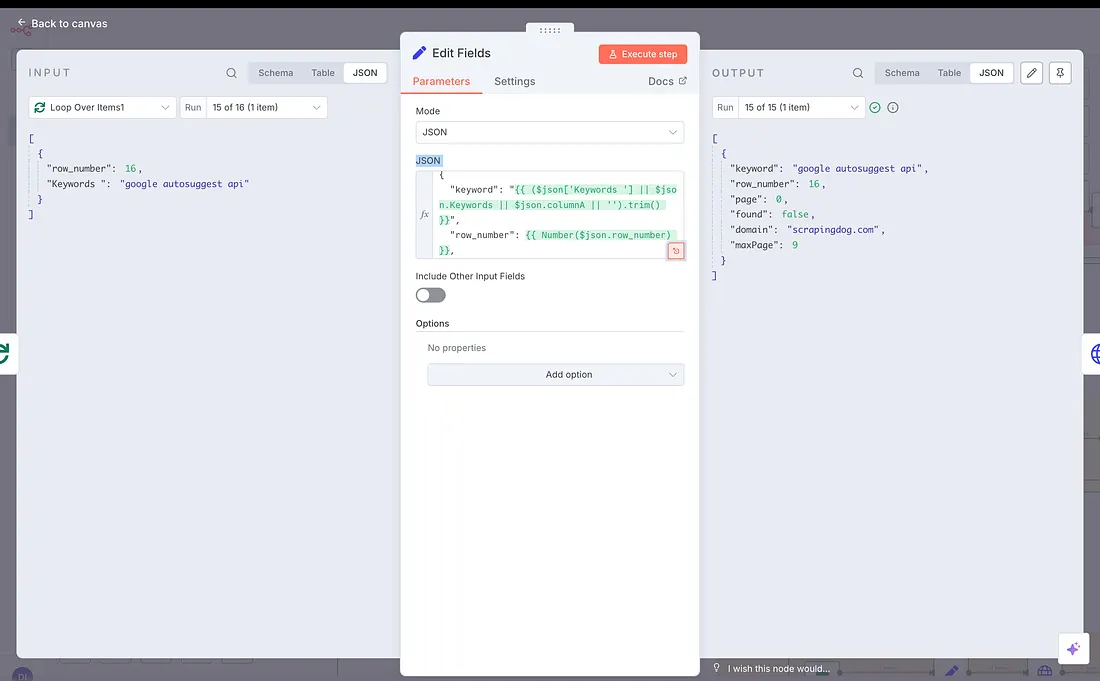
Essentially, we are taking the Kw, row number of the kw, setting page=0 to default (to get the data from the first page), found=false (we use this field to determine if for a page the keyword is found or not, setting default to false), the domain for which we are tracking, max page is the total number of pages i.e. 9 for 10th page (For the first page its value is 0).
We then pass some of this data to our next node, which isan HTTP node.)
Here is the configuration of the HTTP request ⬇️
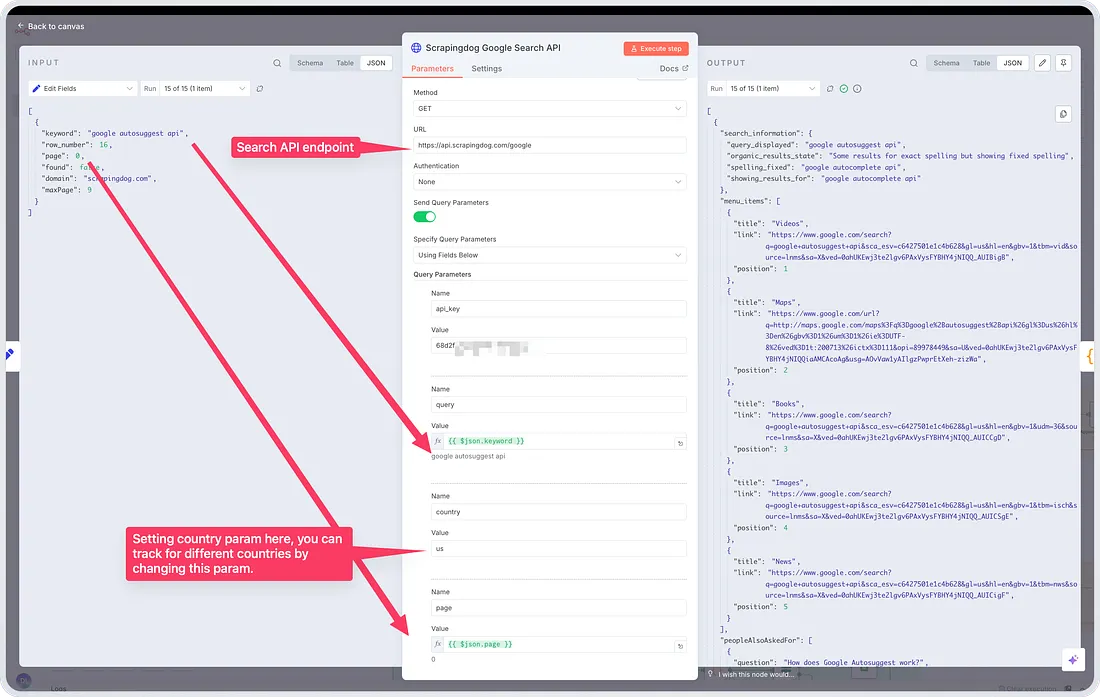
Now, after scraping the 1st page result, logically we need to find if any of our domain’s links exist on page 1, and for that we will use a JavaScript code in the “Code” node.
Here is the JavaScript code that I have used:
1// Pull state from the "Edit Fields" node (rename if your node name differs)2const prev = $item(0).$node["Edit Fields"].json; // keyword, row_number, page, domain, maxPage3const resp = $json; // HTTP response from Scrapingdog4 5const kw = String(prev.keyword || "").trim();6const rn = Number(prev.row_number);7const page = Number(prev.page || 0);8const domain = String(prev.domain || "scrapingdog.com").toLowerCase();9 10// --- helpers ---11function cleanHost(host) {12 return String(host || "")13 .toLowerCase()14 .replace(/^www\./, "");15}16 17function hostFromDisplayedLink(s) {18 // displayed_link can be like "https://scrapingdog.com › blog › post"19 // Try to extract the host safely.20 if (!s) return "";21 try {22 // If it looks like a real URL, parse it.23 if (/^https?:\/\//i.test(s)) return new URL(s).hostname;24 } catch {}25 // Fallback: take first token up to slash/space/»/›26 const m = String(s).match(/[a-z0-9.-]+\.[a-z.]+/i);27 return m ? m[0] : "";28}29 30function isMatch(url, displayedLink, wanted) {31 // Prefer real URL host if present32 try {33 const host = cleanHost(new URL(url).hostname);34 if (host === wanted || host.endsWith("." + wanted)) return true;35 } catch {}36 // Fallback to displayed_link host37 const dispHost = cleanHost(hostFromDisplayedLink(displayedLink));38 if (dispHost && (dispHost === wanted || dispHost.endsWith("." + wanted))) return true;39 return false;40}41 42function normalizePerRank(o, index) {43 // Prefer explicit rank/position if present; convert 0-based to 1-based; else use index+144 const raw = Number(o.rank ?? o.position ?? NaN);45 if (Number.isFinite(raw)) return raw >= 1 ? raw : raw + 1;46 return index + 1;47}48 49// --- pick organic results (Scrapingdog shape variants) ---50const organic =51 resp.organic_results ||52 resp.results ||53 resp.data?.organic_results ||54 resp.data?.results ||55 [];56 57let hit = null;58let perRank = null;59 60// scan results61for (let i = 0; i {62 const url = o.link || o.url || "";63 let host = "";64 try { host = new URL(url).hostname; } catch { /* ignore */ }65 if (!host && o.displayed_link) host = hostFromDisplayedLink(o.displayed_link);66 return cleanHost(host);67 });68 69 return [{70 keyword: kw,71 row_number: rn,72 domain,73 maxPage: Number(prev.maxPage ?? 9),74 found: false,75 page,76 debug_seen_hosts: seenHosts77 }];78}Note: You don’t need to understand programming or code for that matter, this is the code that I have taken from GPT while making the LLM model understand my workflow.
Here’s how the node gives the output: -
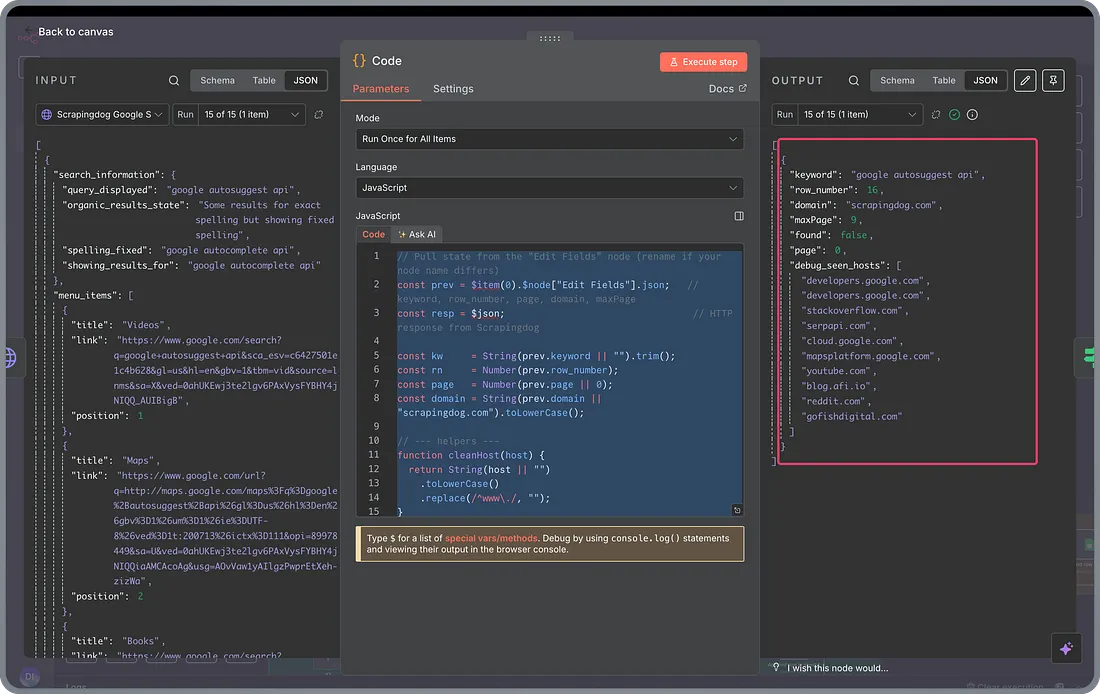
You can see the found data point; it gets to true when it finds the link on a page, and the automation loops back for the next keyword, if any.
And therefore, in the next node, we determine if the “found” data point is true or not. If it is, we take the data into Google Sheets; if it is false, we get results for the next page & repeat the same process.
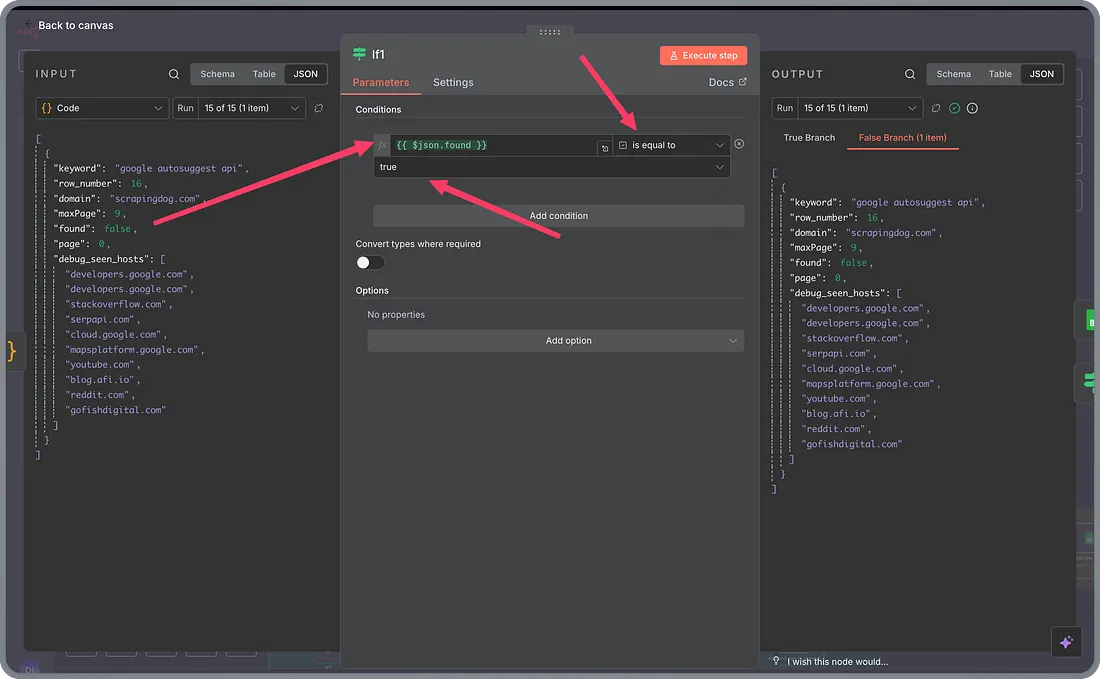
The final step is to append rows in our Spreadsheet, assuming the kw was found on Page 1.
Here is the configuration for that node.
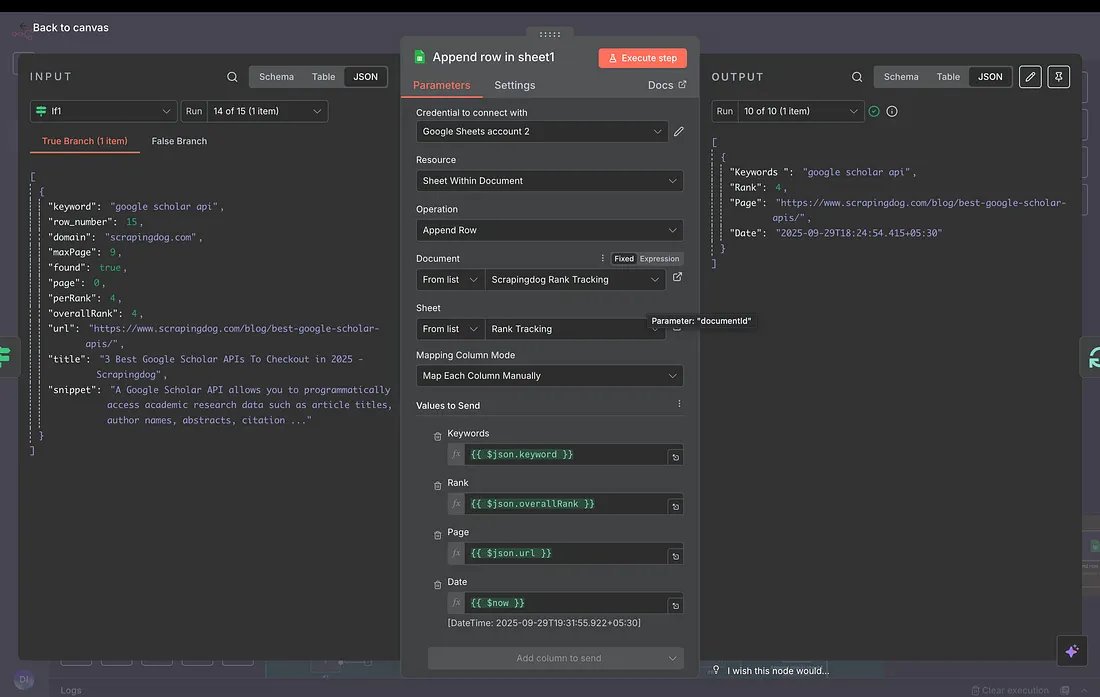
Let’s move back a little to the IF node, where we decide whether to append rows in Google Sheets or not, we talked about what happens when it is True.
Here’s what happens when it is False.
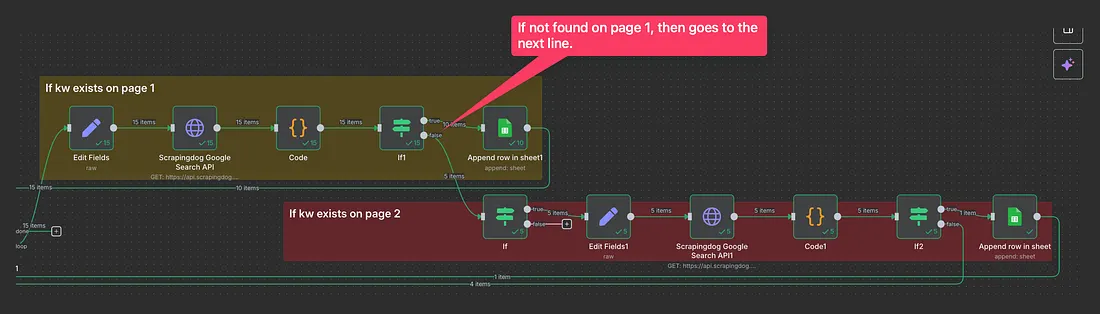
Let me explain to you what happens when it looks for results on the next page.
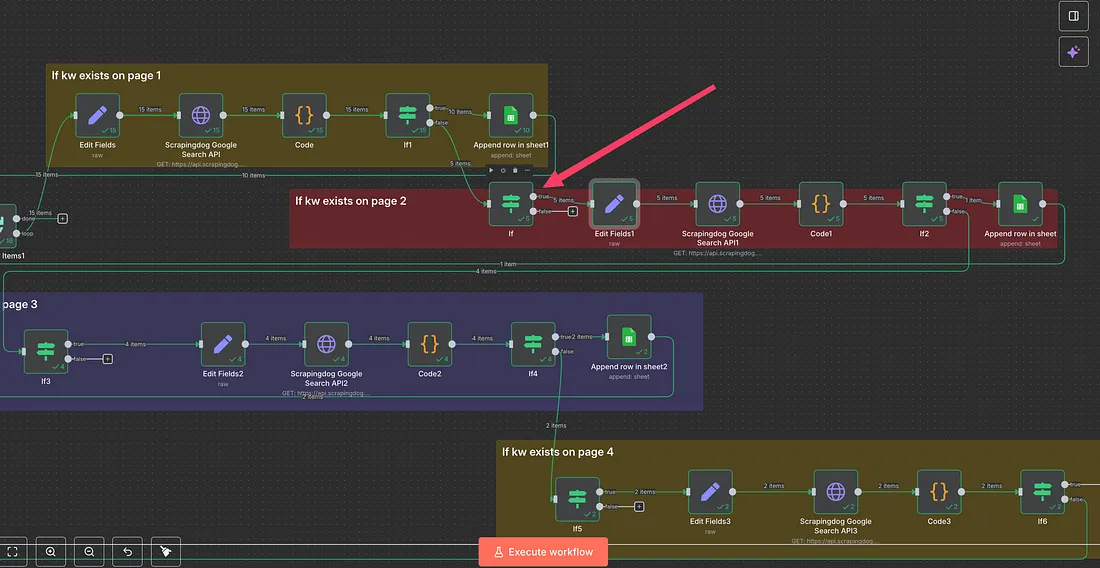
The next IF node checks if the page we are currently on is not greater than max pages i.e. 9
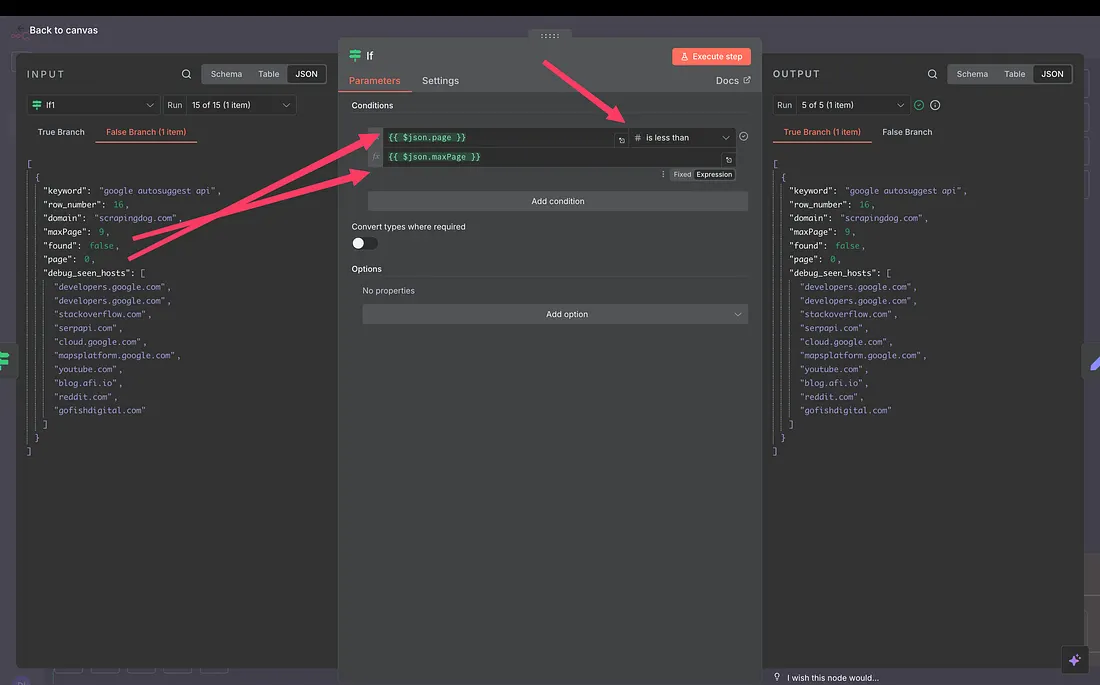
Technically, we are just checking if the page we want the result for is not after the 10th page.
Once checked via this IF node, we increase the page number by 1 here.
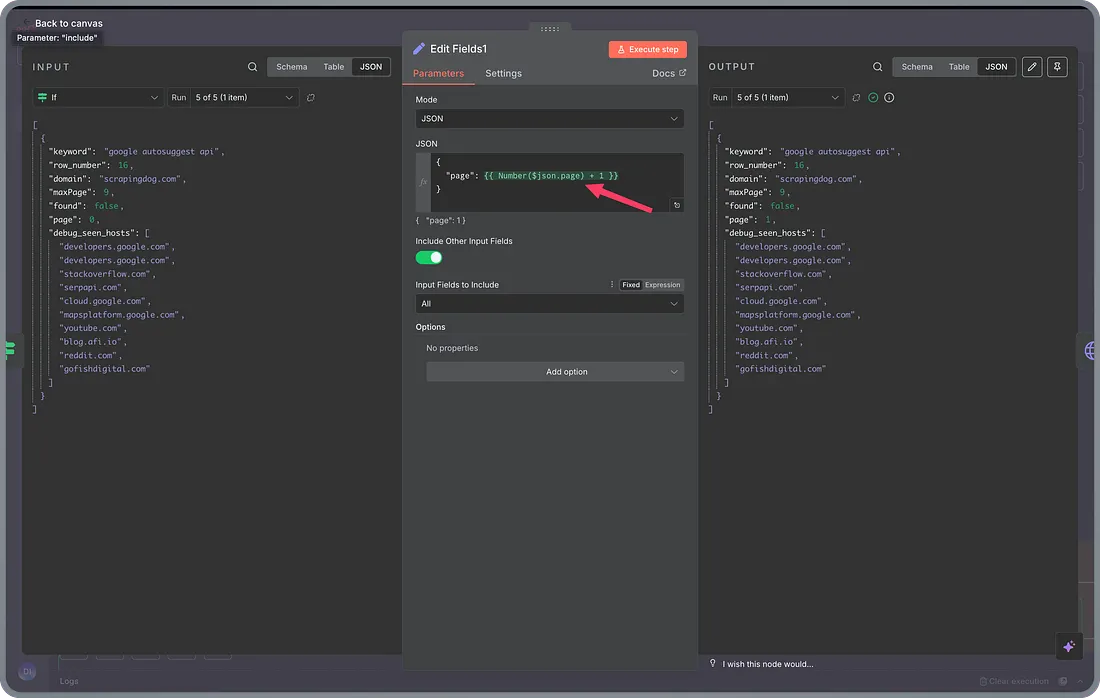
After increasing the page number, we pass this to our Scrapingdog’s API and collect the next 10 results, then find if these results have our page in there. If it is there, we append to Google Sheets; if not, we call the next page.
This happens until page 10. If the result is not found here, too, we append Google Sheets with “Page not in top 100” in the rank column and “null” in the page column.
Finally, here is the blueprint for this automation that you can use for your domains.
Note: — You need to build your own Google Sheet and connect it to the n8n workflow. For the domain you are tracking, change the domain name in the “Edit fields1” node. I have told the ways to set it up in the video given above, or you can go to the video link here.
How To Further Optimize The Cost for Your Rank Tracker
Although the template has already been made to save you money, here are some more tips that can optimize your workflow.
Track keywords that are on 3–5 pages at most — this way, your API cost is reduced further. Also, if you are into SEO, you would know the important keywords that your domain has, so it is good to avoid cost and not track keywords after the 5th page.
Select the API that is economical — this one is a choice, but since costing is one of the factors that needs to be considered, you should choose the API that is economical. We have made a list of the best search scraping APIs that you can refer to. The best thing is that each of the APIs mentioned in the linked blog offers some free credits to test the API before committing to a paid plan.
Track twice or thrice in a week — Again, daily tracking is an option, but to reduce the cost further, your workflow can be optimized to track 2–3 times a week. This would again totally depend on your needs.
Conclusion
In any case, if you need our help to set up the rank tracking workflow for your brand, do let us know on the website chat, and we would be happy to help you out there.
Once you set it up, start tracking your workflow. If everything looks good, you can schedule the first node to a desired daily time.
Additional Resources
Web Scraping with Scrapingdog
Scrape the web without the hassle of getting blocked Try for Free Contact sales